-

Minecraft PE / Bedrock 26.70.22 (1.21.132/26.60)
More epic battles in the new structure, wind -

Dynamic Lights PE Addon for MCPE 1.16/1.17/1.18/1.19/1.20/1.21/26.60+
Dynamic Lights has long been created for almost -

TreeCapitator Addon for Minecraft PE 1.17/1.18/1.19/1.20/1.21.132 (26.60)+
No modifications, now the old TreeCapitator is -

Vein Miner & TreeCapitator Addon for Minecraft PE 1.17/1.20/1.21/26.70+
Start your first day working as a miner or -

Apollon Client 6.70 for Minecraft PE 1.21.114/26.52
Apollon is a standalone client wrapped in -

Minecraft Bedrock 1.21.132/26.60/26.70.21 Patched (apk)
Do you prefer to play non render dragon shaders -

Body Actions Addon v3.4.13 for Minecraft PE 1.19/1.21.110/26.60+
Humanization of characters in Minecraft Bedrock -

LeviLauncher v0.3.11 (LeviLaunchroid v1.6.0) for Minecraft Bedrock 1.21.132/26.60
LeviLauncher is the tool you've been -

Shadow Company Addon for Minecraft PE 1.21/26
A killer weapon addon for Minecraft Bedrock, -

Newb (Legacy/ Dragon/ Trailer/ Glow/ Firelight/ Gold/ Dynamite/ Memories/ Stellar/ AI/ Plus)
Uniting under a single name, all presented Newb
VCMC v2.2.4 (Voice Chat for Minecraft Bedrock 26.X)
- Author: Bernard
- Date:
If you chat with friends while playing Minecraft Bedrock you usually use Discord since it's really one of the simplest though sometimes not the most convinient ways to do so. But there's VCMC, a voice chat feature that works right within Bedrock Edition (and Java Edition as well).
Changelog v2.2.4:
-
/vcmc:verify and /vcmc:menu no need cheats turned on.
- Updated for Realms and servers
Changelog v2.2.1:
-
Improves compatibility with other add-ons that customize Minecraft forms
-
Makes /vcmc:verify more reliable: pending codes now wait up to 60 seconds for the app
Changelog v2.2.0:
- Minecraft Bedrock Realms support
- Added Korean translations
- Improved group cleanup
Changelog v2.0.1:
- The load on WORLD mode has been reduced and persistent lag has been fixed
- Script performance has been optimized to reduce the load on Minecraft Bedrock.
- Issues occurring after pausing and re-entering the world have been fixed.
- Restoring a secure connection after reopening /wsserver has been improved.
Changelog v1.1.9:
-
New prefixes for the /vcmc:verify, /vcmc:room, /vcmc:menu, /vcmc:groups, and /vcmc:admin commands.
-
Server Verification
-
Automatic creation of secure rooms (with an ID and token) and their automatic restoration in the event of a failure or session expiration.
-
Geyser (Bedrock) support
-
Settings are automatically synchronized between Minecraft Bedrock and the app.
-
The plugin now includes the same languages that are already available in the app and the add-on.
-
Other minor fixes and improvements.
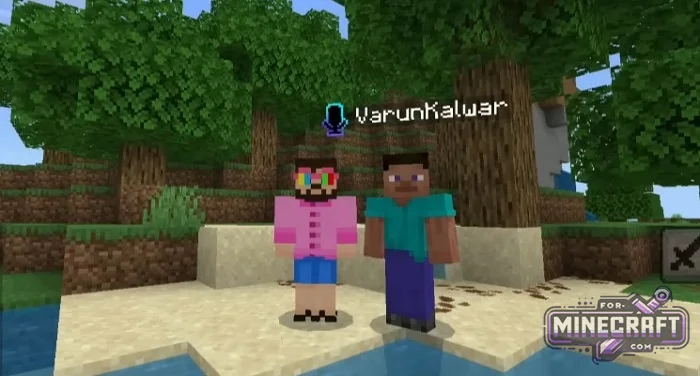
Features:
- Audio volume adjusts based on how far apart players are from each other.
- Quickly mute and unmute the microphone
- Support for Android, iOS, Windows Linux, and Bedrock compatibility with Java via Geyser.
- Ability to mute any player
- No need to open ports or rent audio servers.
- The interface is available in English Spanish and other languages.
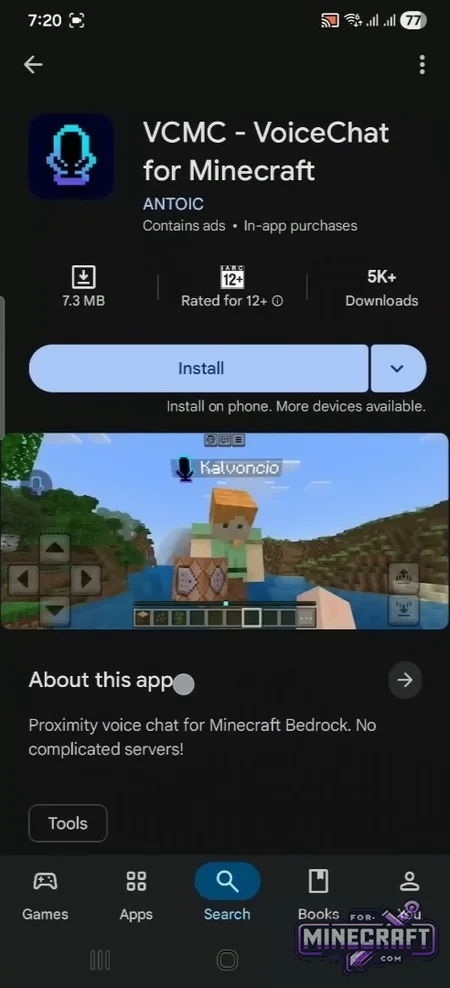
- A microphone icon appears above a player's nickname when they start speaking.
- Works in both private worlds (Host Mode) and on dedicated servers.
Voice chat in MCPE:
Realistic sound- you only hear players who are nearby. If a player walks far into the forest their voice will get quieter and eventually fade away. The setup steps are simple.
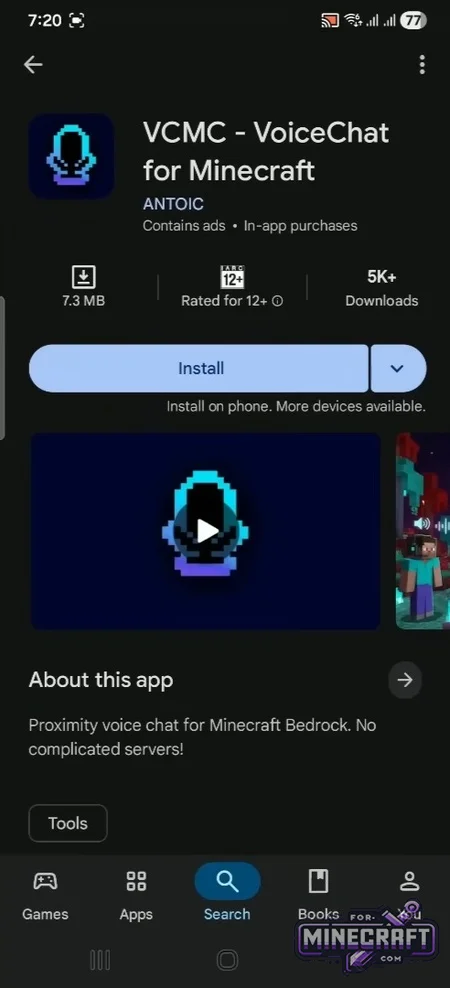
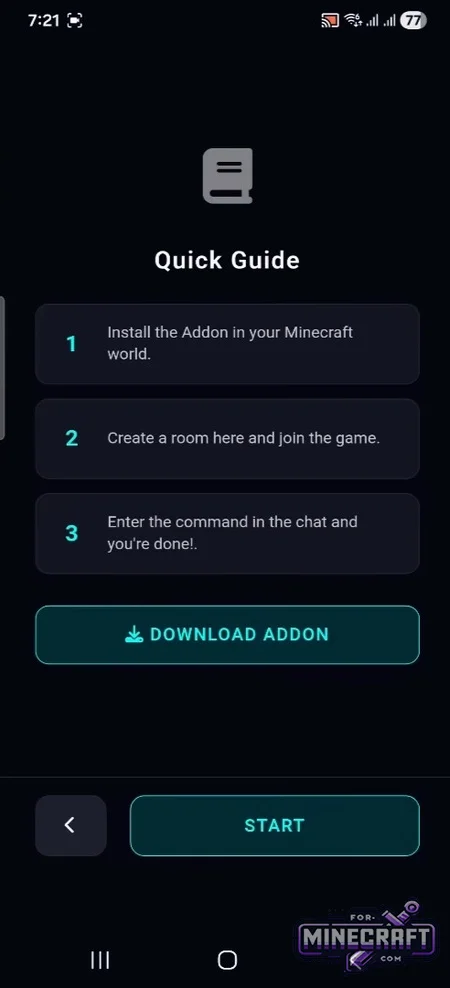
- Download VCMC create a room there, and install a special add-on.
- After that the app will give you a short command. You need to copy it and paste it into the in-game chat.
- As soon as you do this the voice chat will connect to your devices microphone. You can also control the audio via a floating overlay bubble on top of the game.
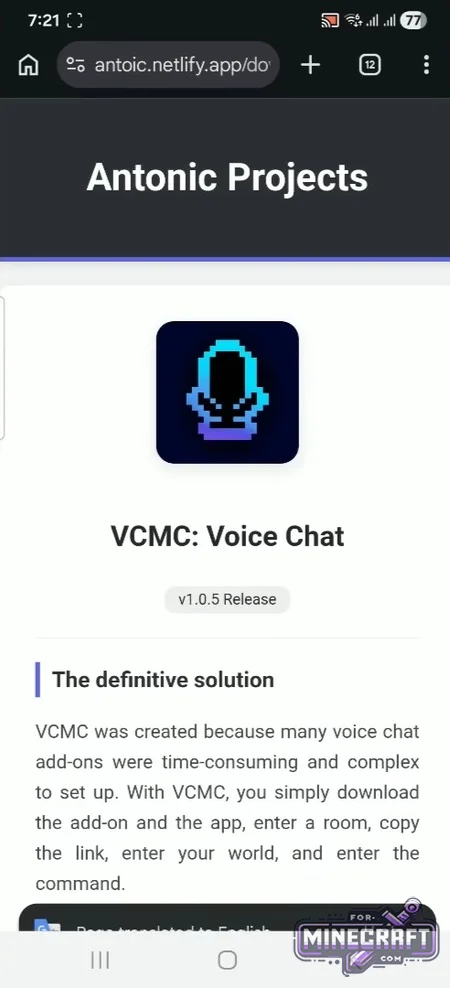
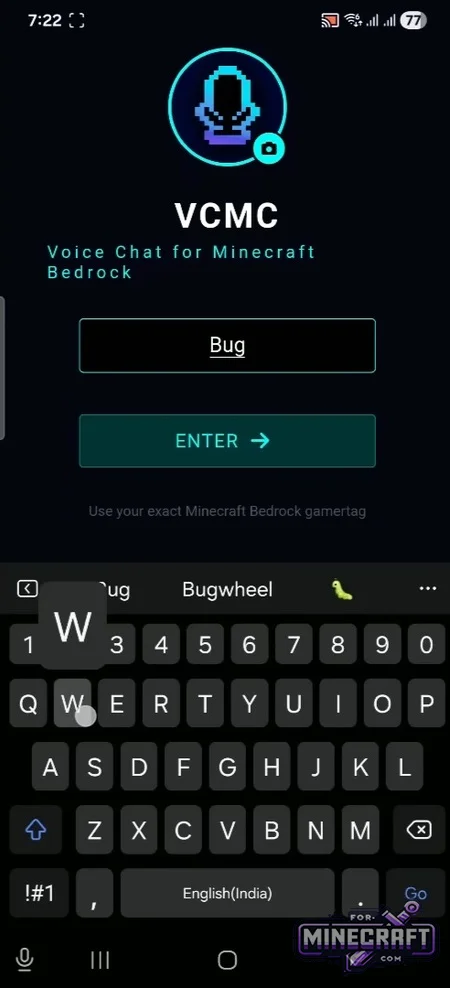
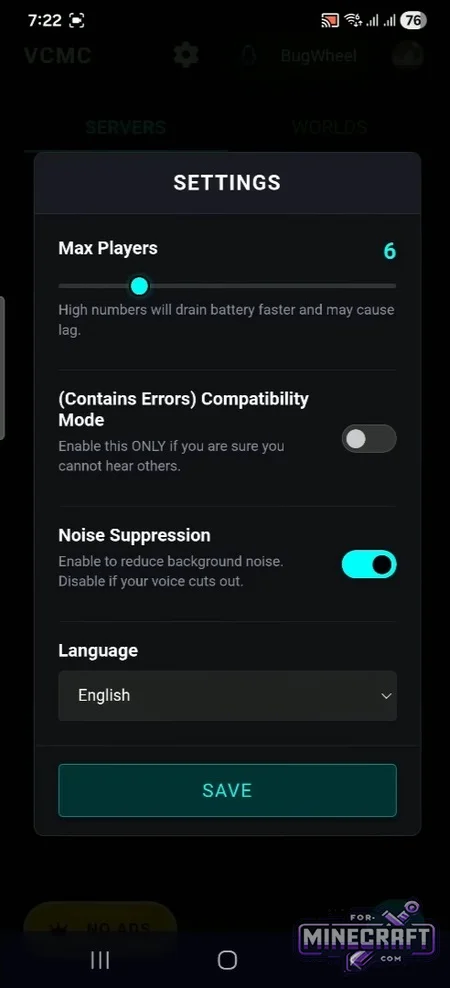
Chat controls:
VCMC includes administration features: mute players via the console or in-game chat. Communication runs over P2P so the app handles port and IP address management. Occasionally there may be a brief delay during the initial connection while the link is established.
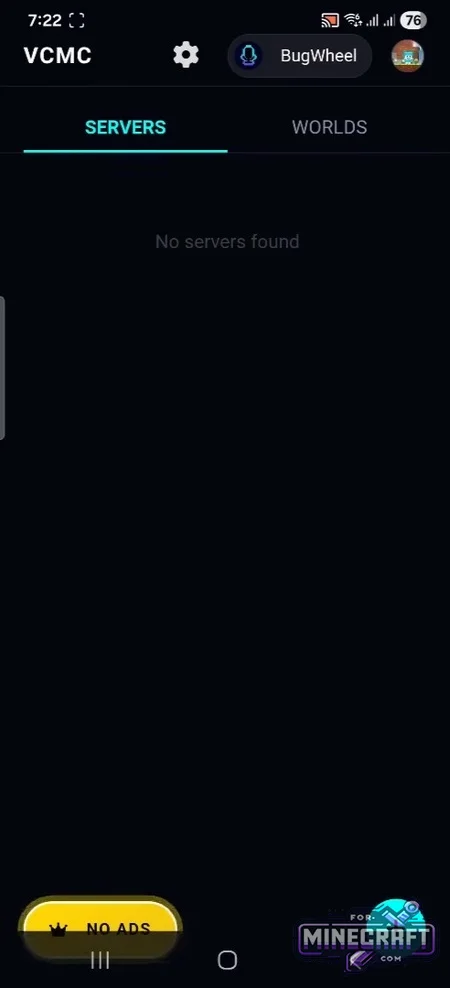
VCMC setup guide:
VCMC connectivity is configured differently depending on where you plan to play. Below are two scenarios: in a local world from a smartphone or PC and on a dedicated server.
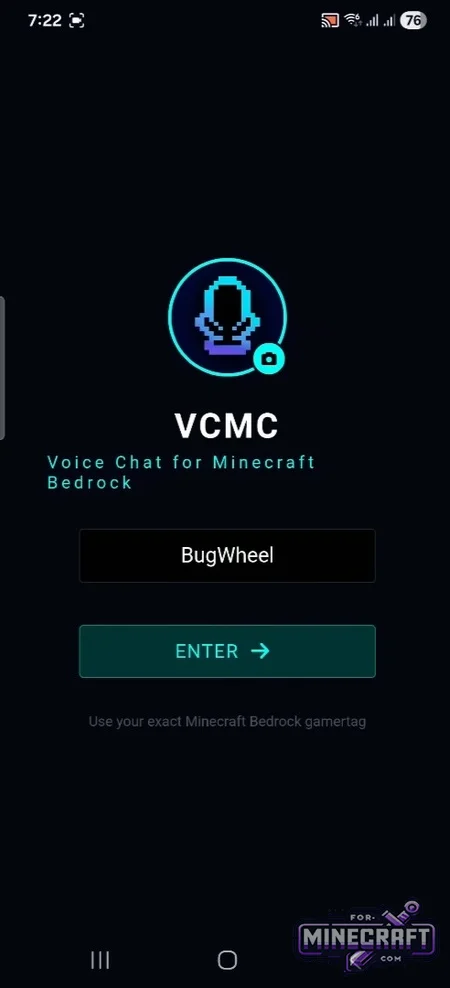
1: Setting up the app
- Download VCMC
- Select the interface language and be sure to grant access to the microphone and allow the app to display over other windows (overlay).
- type your exact Minecraft username
2A: Setup for "My World" mode (local play)
- Use this option if you're simply creating a regular map and inviting friends to join you.
- In VCMC click the Worlds tab and select My World. The program will automatically launch a dedicated voice chat room.
- Add your friends usernames to the list
- Download the official add-on from there or via the link below on our website.
- Import it into Minecraft Bedrock. In the settings for the world you're creating go to "Parameter Sets" and enable the package. You dont need to enable the set marked "Server" here.
- Go to the games general settings open General, and be sure to enable the Websockets slider while disabling the "Allow encrypted websockets only" option.
- In the Experiments section enable the options related to the API and upcoming content creation features.
- Launch MCPE open the VCMC widget, copy the special command link from there and send it to the in-game chat. A confirmation of a succesful connection will appear on the screen.
Steps for Friends
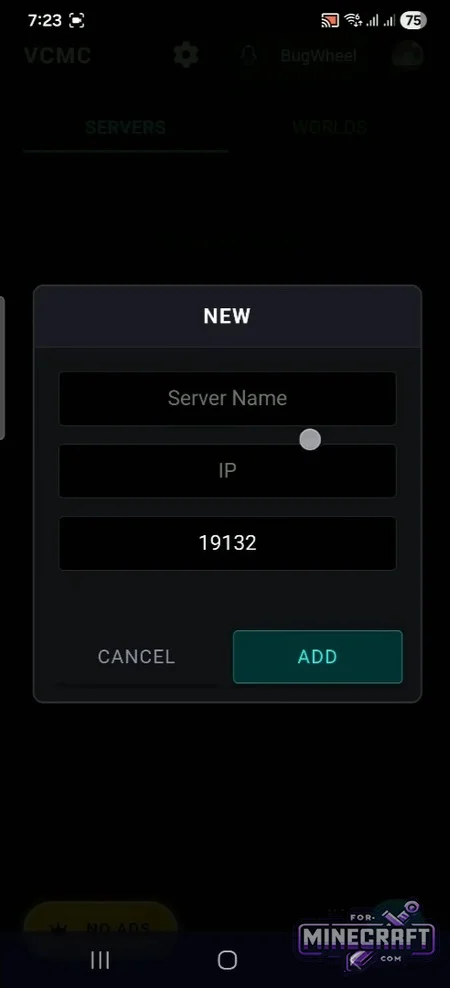
- Open VCMC enter the host's exact Gamertag, and join their room.
- Launch Minecraft and join your friend's map. Guests do not need to change the WebSockets settings or enter commands in the chat.
Step 2B: Configuration for a Dedicated Server (Bedrock)
- Use these instructions if you are administering a server on a hosting service like Aternos or FalixNodes.
- Extract the addon archive. Move the "Server" folder from the archive to your server's 'behavior_packs' directory. Place the texture folder (RP) in "resource_packs". Using the local World pack on servers is prohibited!
- If you are using any hosting service other than Aternos you must manually grant the plugin network access. Open the config/default folder on the server. Locate the permissions.json file and add the line "@minecraft/server-net" to the allowed_modules list.
- Restart the server and check the console. After that players just need to open the app create a room, copy the command link and activate it via chat.
Reason: Added v2.2.4 for Realms and servers
- Category: Bedrock Tools
Recommend:
-
 IndustrialCraft PE Mod 2.4.8 for Minecraft PE 1.16
The IndustrialCraft PE history continues and now it goes to a new level..
IndustrialCraft PE Mod 2.4.8 for Minecraft PE 1.16
The IndustrialCraft PE history continues and now it goes to a new level..
-
 Inner Core for Minecraft PE 1.16 - 3.1.1b127-128 (ARM64 Update)
Inner Core was created on the basis of the original MCPE 1.0.3 and is a full complement for creating and playing with
Inner Core for Minecraft PE 1.16 - 3.1.1b127-128 (ARM64 Update)
Inner Core was created on the basis of the original MCPE 1.0.3 and is a full complement for creating and playing with
-
 IndustrialCraft PE mod v2.0 Pre-Release 7 for Minecraft PE
IndustrialCraft PE is a global mod for MCPE which is a very accurate IndustrialCraft copy for Minecraft PC. It
IndustrialCraft PE mod v2.0 Pre-Release 7 for Minecraft PE
IndustrialCraft PE is a global mod for MCPE which is a very accurate IndustrialCraft copy for Minecraft PC. It
-
 Avrin City for Minecraft PE Bedrock
Avrin City is a global project that pays special attention to even the smallest details..
Avrin City for Minecraft PE Bedrock
Avrin City is a global project that pays special attention to even the smallest details..
-
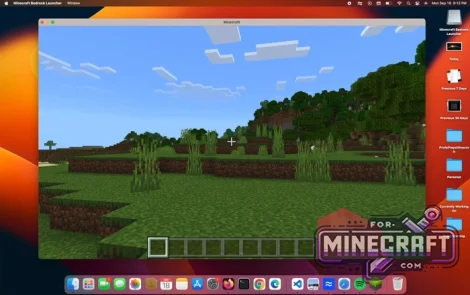 MCPELauncher v1.8.4 - Run Minecraft Bedrock on Linux & macOS
If you use Linux or macOS, you probably know that you can't officially play the Bedrock version of Minecraft on
MCPELauncher v1.8.4 - Run Minecraft Bedrock on Linux & macOS
If you use Linux or macOS, you probably know that you can't officially play the Bedrock version of Minecraft on
