Popular
-
Faithful Textures for MCPE 1.16/1.17/1.19/1.20/1.21/26.52 (32x/64x/128x) (RTX)
Now you can play with the most popular -

Minecraft PE 26.60.30 (1.21.132/26.52)
More epic battles in the new structure, wind -

Dynamic Lights PE Addon for MCPE 1.16/1.17/1.18/1.19/1.20/1.21/26.60+
Dynamic Lights has long been created for almost -

X-Ray for Minecraft Bedrock Edition 1.19/1.20/1.21.132/26.60+
X-Ray is a cult cheat in the past, available as -

TreeCapitator Addon for Minecraft PE 1.17/1.18/1.19/1.20/1.21.132 (26.60)+
No modifications, now the old TreeCapitator is -

Vein Miner & TreeCapitator Addon for Minecraft PE 1.17/1.20/1.21/26.60+
Start your first day working as a miner or -

Java Combat System Addon v8.0 for Bedrock 1.17/1.18/1.19/1.21/26.60+
Install this updated combat system in the form -

Apollon Client 6.53 for Minecraft PE 1.21.114/26.45
Apollon is a standalone client wrapped in -

Minecraft Bedrock 1.21.132/26.44/26.60.29 Patched (apk)
Do you prefer to play non render dragon shaders -

Body Actions Addon v3.4.12 for Minecraft PE 1.19/1.21.110/26.60+
Humanization of characters in Minecraft Bedrock
0
Cinematic Addon v2.9 for Minecraft Bedrock 1.21/26.3+
- Author: Bernard
- Date:
Record videos in Minecraft Bedrock 1.21 without extra software right on mobile using just one simple plugin. The cinematic addon is a helper for any operator, as it creates smooth, cinematic shots and camera movements so you can film your best video directly inside MC.
By: Mod MC (Youtube)
Changelog:
v2.9:
- Minecraft BE 26.3 support
- Fixes
v2.8:
- Minecraft 26.0 support
- Fixes and tweaks
Video creation tools:
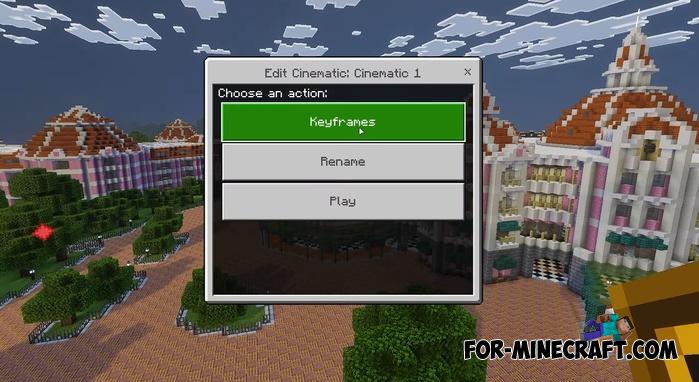
No Minecraft PE video can do without attractive camera angles. In the Cinematic Addon this is addressed with three main modes, which allow you to record footage exactly how you want. There is also the Replay & Cinematic Addon with a slightly more advanced and customizable control system.
Detailed guide on how to use the addon:
Getting Started:
1. Acquire the Cinematic Controller: Open your Creative Inventory and take the Cinematic Controller item.
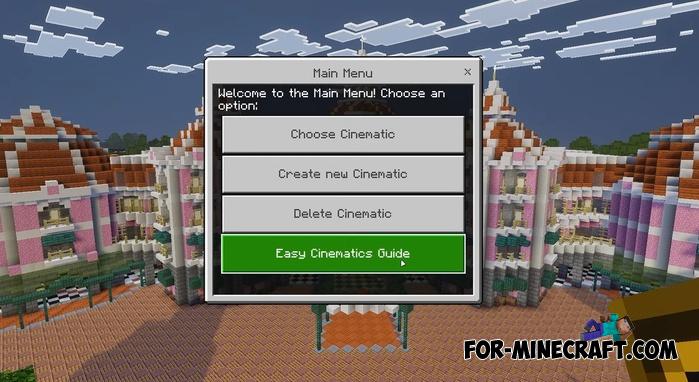
2. Access the Main Menu: Hold the Cinematic Controller and right-click (or long press on mobile) to open the Main Menu.
You'll see four options:
- Choose Cinematic
- Create New Cinematic
- Delete Cinematic
- Guide
Creating a New Cinematic
Click on 'Create New Cinematic'. A new menu will appear where you can:
- Optionally give your cinematic a custom name.
- Select a Cinematic Mode. There are three available modes:
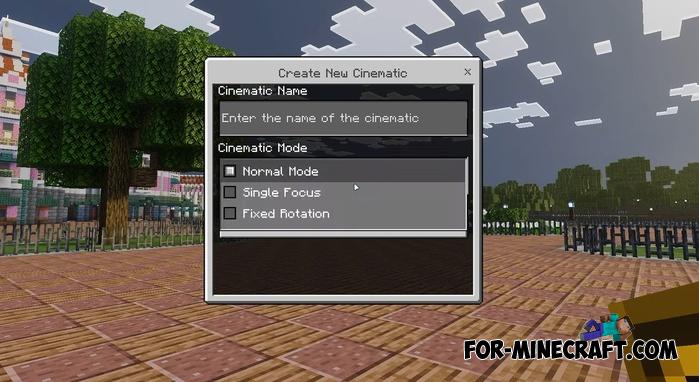
1. Normal Mode
Purpose: Allows different focus points for each keyframe.
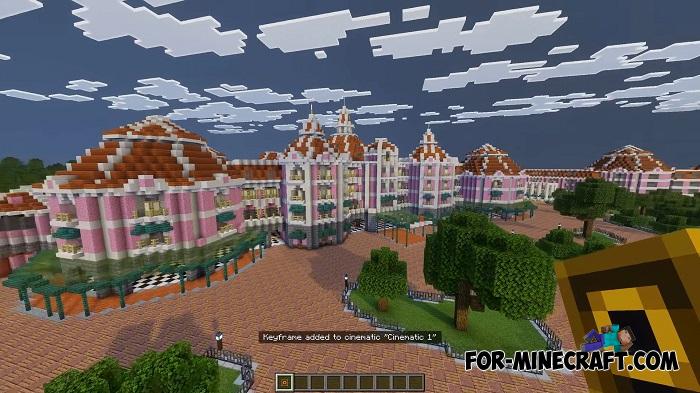
How to Use: Select 'Normal Mode' and create your cinematic. Move to the location for your first keyframe, open the Main Menu > Choose Cinematic > Select your cinematic > Click Add Keyframe. The first keyframe doesn’t have any properties—just click Submit. For each following keyframe, move to the new location and look at the desired focus point, then click Add Keyframe again.
2. Single Focus Mode
Purpose: All keyframes share one single focus point.
How to Use: Before creating the cinematic, face the direction where you want the single focus point to be. Open Main Menu > Create New Cinematic > Choose 'Single Focus' mode. Now add keyframes as needed. The camera will always focus on that original point. The first keyframe has no properties. Subsequent ones will include speed and easing options.
3. Fixed Rotation Mode
Purpose: No focus points. The camera keeps the same rotation throughout.
How to Use: Face in the direction you want the camera angle to stay. Open Main Menu > Create New Cinematic > Choose 'Fixed Rotation' mode. Add keyframes as needed. The direction remains fixed; only positions change. Again, the first keyframe has no properties. Others will allow you to set speed and easing.
Understanding Keyframe Properties
- Speed: Controls how fast the camera moves between keyframes.
- Easing Type: Controls how smooth or sharp the transition is. 'Linear' is the default and provides consistent movement.
- Note: Properties set for a keyframe apply to the transition to that keyframe. (e.g., settings on Keyframe 2 control the transition from Keyframe 1 to Keyframe 2.)
Playing a Cinematic
Open Main Menu > Choose Cinematic > Select your cinematic > Click Play.
Editing & Deleting
- Rename: After selecting a cinematic, you can rename it from its UI.
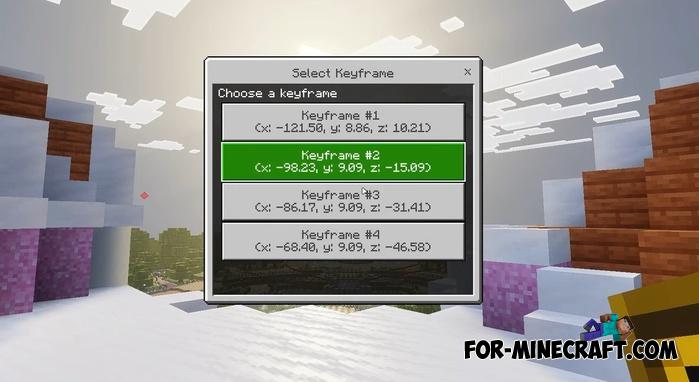
- Edit Keyframes: Modify speed or easing for any keyframe.
- Delete Keyframes: Remove unwanted keyframes at any time.
- Delete Cinematic: From the main menu, click 'Delete Cinematic', select your cinematic, and confirm deletion.
Tips
- Simulation Distance: Increase your world's simulation distance if your keyframes are far apart.
Edited —
Reason: Added v2.9 for MCPE 26.3
Reason: Added v2.9 for MCPE 26.3
- Category: Mods & Addons for Minecraft Bedrock (PE)
Recommend:
-
Minecraft PE 26.60.30 (1.21.132/26.52)
More epic battles in the new structure, wind shooting mob, auto crafting and more..
-
 Minecraft PE 1.19.80.24 Beta (1.19.81 Release)
Meet the officially announced Minecraft PE 1.19 update with frogs, warden, fireflies and swamps!
Minecraft PE 1.19.80.24 Beta (1.19.81 Release)
Meet the officially announced Minecraft PE 1.19 update with frogs, warden, fireflies and swamps!
-
 Download Minecraft PE 1.16.230.56 (1.16.221) - Nether Update
The most massive Nether update with new mobs, plants and biomes!
Download Minecraft PE 1.16.230.56 (1.16.221) - Nether Update
The most massive Nether update with new mobs, plants and biomes!
-
 Minecraft PE 1.20.80.24 (1.20.80 Release)
Camels, hanging signs, sniffers and rafts and much more..
Minecraft PE 1.20.80.24 (1.20.80 Release)
Camels, hanging signs, sniffers and rafts and much more..
-
 IndustrialCraft PE mod v2.0 Pre-Release 7 for Minecraft PE
IndustrialCraft PE is a global mod for MCPE which is a very accurate IndustrialCraft copy for Minecraft PC. It
IndustrialCraft PE mod v2.0 Pre-Release 7 for Minecraft PE
IndustrialCraft PE is a global mod for MCPE which is a very accurate IndustrialCraft copy for Minecraft PC. It
